Visual Demo
Watch HSTR in action - see how easy it is to search and navigate your command history:
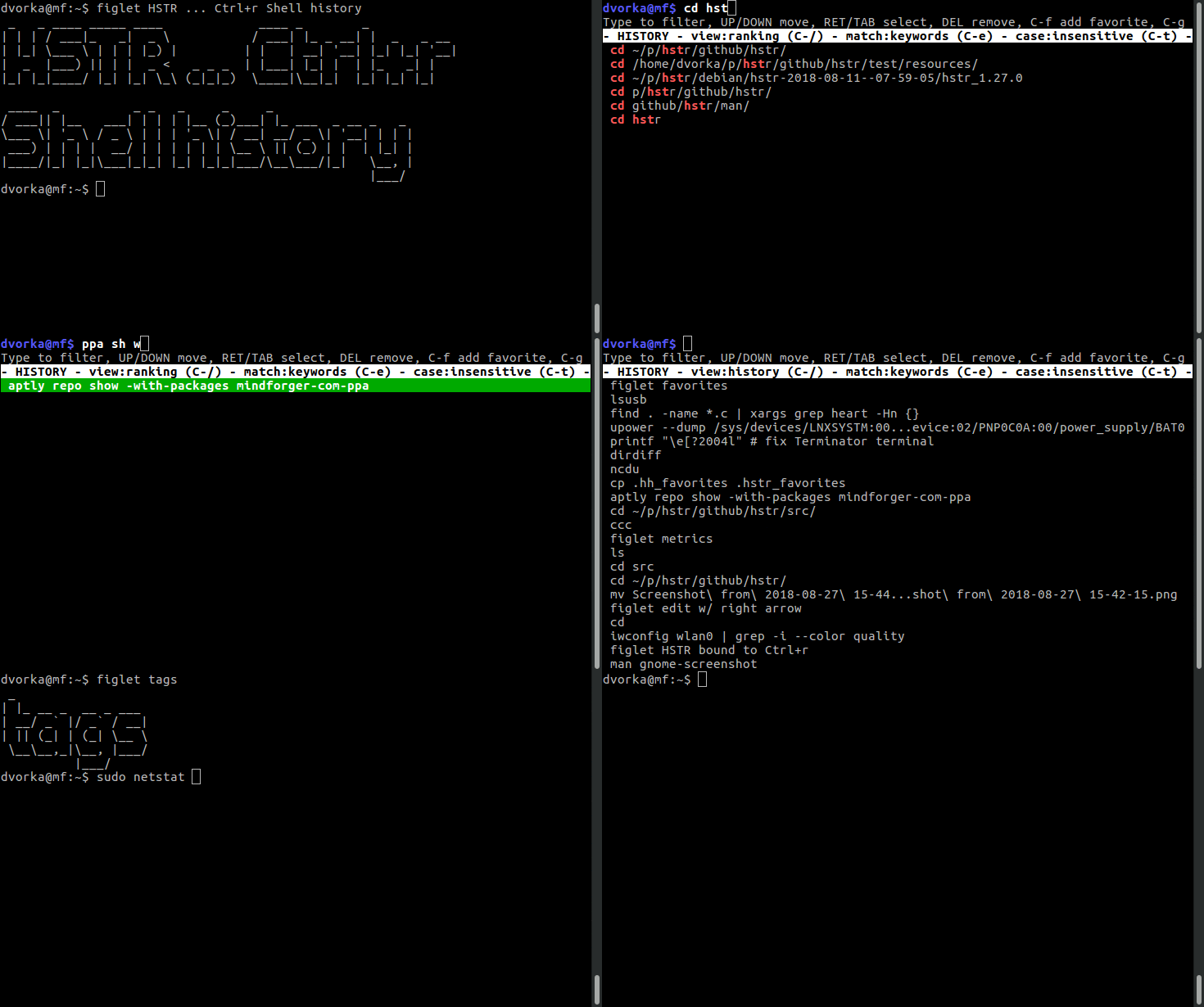
Tip: Press Ctrl-r to invoke HSTR anytime from your command line!
Finding Docker Commands
If you work with Docker, you know how complex commands can get. HSTR makes it easy to find and reuse them.
Scenario
You need to find that Docker run command you used last week for your development environment.
Solution
# Press Ctrl-r and type: docker run
# HSTR will show all your docker run commands:

docker run -it --rm -v $(pwd):/app -w /app node:18 npm install
docker run -d -p 5432:5432 -e POSTGRES_PASSWORD=dev postgres
docker run --name redis -d -p 6379:6379 redis:alpine
Even Better: Use Tags
docker run -it --rm -v $(pwd):/app node:18 npm install # NODE
docker run -d -p 5432:5432 postgres # PG
docker run --name redis -d -p 6379:6379 redis # REDIS

# Now just type "NODE" or "PG" to find them instantly!
SSH Tunnel Management
SSH tunnels are powerful but the commands are hard to remember.
Problem
You have several SSH tunnels to different servers but can never remember the exact ports and parameters.
HSTR Solution
# Tag your SSH tunnels for easy finding:
ssh -L 8080:localhost:3000 user@dev-server.com # SSH-DEV
ssh -L 3306:localhost:3306 user@db-server.com # SSH-DB
ssh -L 9200:localhost:9200 user@elastic.com # SSH-ELASTIC

# Press Ctrl-r, type "SSH-" to see all your tunnels
# Or just type "db" to find database related tunnels
Git Command Archaeology
Find that perfect git command you used months ago.
Use Case
You need to find a specific git log format you created, or a complex git rebase command.
With HSTR
# Press Ctrl-r and search: git log

# HSTR shows all variations you've used:
git log --graph --oneline --all --decorate
git log --pretty=format:'%h %s' --since='2 weeks ago'
git log -p -- path/to/file.js
git log --author="yourname" --grep="bug fix"
Tip: Add these complex commands to favorites with Ctrl-f so you can access them even faster!
Database Query Templates
Reuse your complex database queries without maintaining a separate file.
Workflow
# Run your queries and tag them:
psql -h localhost -U postgres -d mydb -c "SELECT * FROM users WHERE created_at > NOW() - INTERVAL '7 days'" # RECENT-USERS

mysql -u root -p mydb -e "SELECT table_name, table_rows FROM information_schema.tables WHERE table_schema = 'mydb'" # TABLE-STATS

# Later, just press Ctrl-r and type the tag!
Network Debugging Commands
Network troubleshooting involves many specialized commands.
Common Network Commands
# Check network connections
netstat -tuln | grep LISTEN

# DNS lookup with details
dig example.com +trace

# Test HTTP endpoint
curl -I -X GET https://api.example.com/health

# Check route to host
traceroute example.com

# All these get saved in your HSTR history for quick reuse!
System Administration Tasks
System admin commands are often too complex to remember but too important to forget.
Examples
# Find large files
find / -type f -size +100M -exec ls -lh {} \; 2>/dev/null # LARGE-FILES

# Check disk usage by directory
du -h --max-depth=1 /var | sort -hr # DISK-USAGE

# Monitor system resources
watch -n 1 'ps aux --sort=-%mem | head -20' # TOP-MEMORY

# List open files by process
lsof -p $(pgrep -f "process-name") # OPEN-FILES
Best Practice: Tag system commands with clear identifiers. When an issue arises, you'll find the right diagnostic command immediately.
Build & Deploy Commands
Complex build pipelines become simple with HSTR.
CI/CD Workflow
# Build commands with different options
npm run build -- --production --verbose # BUILD-PROD
npm run build:staging && npm run deploy:staging # DEPLOY-STAGE
docker build -t myapp:latest . && docker push myapp:latest # DOCKER-BUILD

# Test commands
npm test -- --coverage --verbose # TEST-COVERAGE
npm run test:e2e -- --headed # TEST-E2E

# Just type "BUILD", "DEPLOY", or "TEST" to filter!
Data Processing Pipelines
Complex data transformations are easy to retrieve with HSTR.
Example Pipeline
# CSV processing
cat data.csv | cut -d',' -f1,3 | sort | uniq -c # CSV-UNIQUE

# JSON processing
cat data.json | jq '.[] | select(.status=="active")' # JQ-ACTIVE

# Log analysis
grep ERROR app.log | awk '{print $1, $2, $NF}' | sort | uniq -c | sort -rn # ERROR-STATS

# All saved and searchable in HSTR!
Productivity Tips
1. Create a Personal Command Library
Use favorites to build your own command library:
# Add frequently used commands to favorites (Ctrl-f)
# Organize them with tags
# Access instantly when needed
2. Clean Your History
Keep your history clean and relevant:
# Press Ctrl-r to open HSTR
# Navigate to unwanted commands
# Press DEL to remove them
# Your history stays focused and useful
3. Different Views for Different Tasks
Switch views based on what you need:
- Ranked View (default): Shows most used commands first
- Raw History View (Ctrl-/): Chronological order
- Favorites View (Ctrl-/): Only bookmarked commands
4. Search Modes
Use different search modes for different scenarios:
- Keywords (default): Type multiple words in any order
- Regex: For complex pattern matching
- Substring: For exact phrase matching